
simple_admob_native_ad 1.2.1  simple_admob_native_ad: ^1.2.1 copied to clipboard
A simple, compact Flutter plugin for displaying Google AdMob native ads as banners with auto-refresh and lifecycle management.
simple_admob_native_ad #
A simple, compact Flutter plugin for displaying Google AdMob native ads as banners with auto-refresh and lifecycle management.
Features #
- ✅ Native Ad Integration: Display Google AdMob native ads with custom layouts
- ✅ Auto-Refresh: Automatically reload ads every 5 minutes (configurable)
- ✅ Lifecycle Management: Pause/resume ad timer based on app lifecycle
- ✅ Platform Support: iOS and Android (Web, macOS, Windows, Linux not supported)
- ✅ Customizable Placeholder: Show custom widget while ad is loading
- ✅ Smooth Transitions: Animated transitions between placeholder and ad
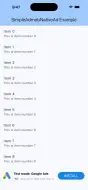
Screenshots #
iOS #
 Light Mode |
 Dark Mode |
Android #
 Light Mode |
 Dark Mode |
Installation #
Add this to your package's pubspec.yaml file:
dependencies:
  simple_admob_native_ad: ^1.2.1
  google_mobile_ads: ^6.0.0
Setup #
Android #
- Add AdMob App ID to
android/app/src/main/AndroidManifest.xml:
<manifest>
    <application>
        <meta-data
            android:name="com.google.android.gms.ads.APPLICATION_ID"
            android:value="ca-app-pub-xxxxxxxxxxxxxxxx~yyyyyyyyyy"/>
    </application>
</manifest>
Note: For testing, use the test app ID:
ca-app-pub-3940256099942544~3347511713
That's it! The native ad factory is automatically registered by the plugin on Android—no additional code needed in your app.
iOS #
- Add AdMob App ID to
ios/Runner/Info.plist:
<key>GADApplicationIdentifier</key>
<string>ca-app-pub-xxxxxxxxxxxxxxxx~yyyyyyyyyy</string>
<key>SKAdNetworkItems</key>
<array>
    <dict>
        <key>SKAdNetworkIdentifier</key>
        <string>cstr6suwn9.skadnetwork</string>
    </dict>
</array>
Note: For testing, use the test app ID:
ca-app-pub-3940256099942544~1458002511
- Register SimpleNativeAdFactory in your
ios/Runner/AppDelegate.swift:
Why is this step required on iOS? Unlike Android, iOS requires manual registration in AppDelegate because the
FLTGoogleMobileAdsPlugin.registerNativeAdFactorymethod needs access toFlutterPluginRegistry(which only AppDelegate provides). This is a platform limitation, not specific to this plugin.
import UIKit
import Flutter
import simple_admob_native_ad

@main
@objc class AppDelegate: FlutterAppDelegate {
  override func application(
    _ application: UIApplication,
    didFinishLaunchingWithOptions launchOptions: [UIApplication.LaunchOptionsKey: Any]?
  ) -> Bool {
    GeneratedPluginRegistrant.register(with: self)
    SimpleAdmobNativeAdPlugin.registerNativeAdFactory(registry: self)
    return super.application(application, didFinishLaunchingWithOptions: launchOptions)
  }
}
That's it! Just one line of code (
SimpleAdmobNativeAdPlugin.registerNativeAdFactory(registry: self)) handles all the registration.
- (Optional) Disable Native Ad Validator during development in
ios/Runner/Info.plist:
By default, the Native Ad Validator is enabled in debug builds to help you validate your ad layout. If you want to disable the validator overlay during development, add the following to your Info.plist:
<key>GADNativeAdValidatorEnabled</key>
<false/>
Note: The validator is only shown in debug builds and is automatically disabled in release builds. It's recommended to keep it enabled during development to ensure your ad layout is correctly implemented.
Usage #
Basic Example #
import 'package:flutter/material.dart';
import 'package:simple_admob_native_ad/simple_admob_native_ad.dart';
import 'package:google_mobile_ads/google_mobile_ads.dart';

void main() {
  WidgetsFlutterBinding.ensureInitialized();
  MobileAds.instance.initialize();
  runApp(const MyApp());
}

class MyApp extends StatelessWidget {
  const MyApp({super.key});

  @override
  Widget build(BuildContext context) {
    return MaterialApp(
      title: 'SimpleAdmobNativeAd Example',
      theme: ThemeData(
        colorScheme: ColorScheme.fromSeed(seedColor: Colors.blue),
        useMaterial3: true,
      ),
      home: const MyHomePage(),
    );
  }
}

class MyHomePage extends StatefulWidget {
  const MyHomePage({super.key});

  @override
  State<MyHomePage> createState() => _MyHomePageState();
}

class _MyHomePageState extends State<MyHomePage> {
  final _timerController = SimpleNativeAdTimerController();

  @override
  void dispose() {
    _timerController.stopTimer?.call();
    super.dispose();
  }

  @override
  Widget build(BuildContext context) {
    return Scaffold(
      appBar: AppBar(
        backgroundColor: Theme.of(context).colorScheme.inversePrimary,
        title: const Text('SimpleAdmobNativeAd Example'),
      ),
      body: Column(
        children: [
          Expanded(
            child: ListView.builder(
              itemCount: 20,
              itemBuilder: (context, index) {
                return ListTile(
                  title: Text('Item $index'),
                  subtitle: Text('This is item number $index'),
                );
              },
            ),
          ),
          SafeArea(
            child: SimpleNativeAd(
              iosAdUnitId: testNativeAdUnitIdIOS,
              androidAdUnitId: testNativeAdUnitIdAndroid,
              timerController: _timerController,
              showBorderTop: true,
            ),
          ),
        ],
      ),
    );
  }
}
Test Ad Unit IDs #
For testing, use the following ad unit IDs from ad_util.dart:
// iOS Test Ad Unit IDs
testNativeAdvancedAdUnitIdIOS: 'ca-app-pub-3940256099942544/3986624511'

// Android Test Ad Unit IDs
testNativeAdvancedAdUnitIdAndroid: 'ca-app-pub-3940256099942544/2247696110'
Important: Replace with your actual ad unit IDs before releasing to production!
Parameters #
| Parameter | Type | Required | Default | Description |
|---|---|---|---|---|
iosAdUnitId |
String | Yes | - | AdMob ad unit ID for iOS |
androidAdUnitId |
String | Yes | - | AdMob ad unit ID for Android |
timerController |
SimpleNativeAdTimerController | Yes | - | Controller to manage ad refresh timer |
placeholder |
Widget? | No | null | Widget to display while ad is loading |
height |
double? | No | Auto (90.0 for iPad, 64.0 for iPhone) | Height of the ad banner in pixels |
refreshInterval |
Duration | No | 5 minutes | How often to reload the ad |
animationDuration |
Duration | No | 300 milliseconds | Duration of transition animation between placeholder and ad |
onAdLoaded |
VoidCallback? | No | null | Callback when ad is loaded successfully |
onAdFailedToLoad |
VoidCallback? | No | null | Callback when ad fails to load |
showBorderTop |
bool | No | false | Whether to show top border |
borderTopWidth |
double | No | 1.0 | Width of top border |
borderTopColor |
Color? | No | Theme-based | Color of top border |
showBorderBottom |
bool | No | false | Whether to show bottom border |
borderBottomWidth |
double | No | 1.0 | Width of bottom border |
borderBottomColor |
Color? | No | Theme-based | Color of bottom border |
forceColorMode |
AdColorMode | No | AdColorMode.auto | Force light/dark mode colors (auto, light, or dark) |
backgroundColor |
Color? | No | Theme-based | Background color of ad banner (use Colors.transparent for transparent) |
leftPadding |
double? | No | null | Left padding of the ad content in logical pixels |
rightPadding |
double? | No | null | Right padding of the ad content in logical pixels |
adChoicesPlacement |
AdChoicesPlacement? | No | topRightCorner | Position of the AdChoices icon (from google_mobile_ads package) |
Timer Controller #
The SimpleNativeAdTimerController allows you to control the ad refresh timer:
final timerController = SimpleNativeAdTimerController();

// Start timer (called automatically)
timerController.startTimer?.call();

// Stop timer (call in dispose())
timerController.stopTimer?.call();
Customization Examples #
Custom Height and Refresh Interval #
SimpleNativeAd(
  iosAdUnitId: 'ca-app-pub-3940256099942544/3986624511',
  androidAdUnitId: 'ca-app-pub-3940256099942544/2247696110',
  timerController: _timerController,
  height: 80.0, // Custom height
  refreshInterval: const Duration(minutes: 5), // Refresh every 5 minutes
  animationDuration: const Duration(milliseconds: 300), // Faster animation
  placeholder: Container(
    color: Colors.grey[200],
    child: const Center(child: Text('Loading ad...')),
  ),
)
Force Light or Dark Mode #
You can override the system theme and force the ad to display in light or dark mode:
// Always show light mode colors
SimpleNativeAd(
  iosAdUnitId: testNativeAdUnitIdIOS,
  androidAdUnitId: testNativeAdUnitIdAndroid,
  timerController: _timerController,
  forceColorMode: AdColorMode.light,
)

// Always show dark mode colors
SimpleNativeAd(
  iosAdUnitId: testNativeAdUnitIdIOS,
  androidAdUnitId: testNativeAdUnitIdAndroid,
  timerController: _timerController,
  forceColorMode: AdColorMode.dark,
)

// Auto (default): Follow system theme
SimpleNativeAd(
  iosAdUnitId: testNativeAdUnitIdIOS,
  androidAdUnitId: testNativeAdUnitIdAndroid,
  timerController: _timerController,
  forceColorMode: AdColorMode.auto, // or omit this parameter
)
Note: When forceColorMode changes, the ad will automatically reload with the new color scheme applied.
Custom Background Color #
You can customize the background color of the ad banner:
// Transparent background
SimpleNativeAd(
  iosAdUnitId: testNativeAdUnitIdIOS,
  androidAdUnitId: testNativeAdUnitIdAndroid,
  timerController: _timerController,
  backgroundColor: Colors.transparent,
)

// Custom color
SimpleNativeAd(
  iosAdUnitId: testNativeAdUnitIdIOS,
  androidAdUnitId: testNativeAdUnitIdAndroid,
  timerController: _timerController,
  backgroundColor: Colors.grey.shade100,
)

// Default: Automatically uses theme-based color (white for light mode, dark gray for dark mode)
SimpleNativeAd(
  iosAdUnitId: testNativeAdUnitIdIOS,
  androidAdUnitId: testNativeAdUnitIdAndroid,
  timerController: _timerController,
  // backgroundColor omitted - uses default
)
Custom Padding #
You can customize the left and right padding of the native ad content:
SimpleNativeAd(
  iosAdUnitId: testNativeAdUnitIdIOS,
  androidAdUnitId: testNativeAdUnitIdAndroid,
  timerController: _timerController,
  leftPadding: 16.0,  // Left padding in logical pixels
  rightPadding: 24.0, // Right padding in logical pixels
)
AdChoices Icon Position #
You can control the position of the AdChoices icon using the adChoicesPlacement parameter:
import 'package:google_mobile_ads/google_mobile_ads.dart';

// Place AdChoices icon in top left corner
SimpleNativeAd(
  iosAdUnitId: testNativeAdUnitIdIOS,
  androidAdUnitId: testNativeAdUnitIdAndroid,
  timerController: _timerController,
  adChoicesPlacement: AdChoicesPlacement.topLeftCorner,
)

// Available positions:
// - AdChoicesPlacement.topRightCorner (default)
// - AdChoicesPlacement.topLeftCorner
// - AdChoicesPlacement.bottomRightCorner
// - AdChoicesPlacement.bottomLeftCorner
Customizing Ad Layout #
Android
Edit android/src/main/res/layout/simple_native_ad.xml to customize the ad layout.
Customize colors in android/src/main/res/values/colors.xml:
<color name="ad_banner_background">#FFFFFF</color>
<color name="ad_banner_default_text">#000000</color>
<color name="ad_banner_cta_text">#007afe</color>
iOS
Edit ios/Classes/NativeAd/SimpleNativeAd.xib in Xcode Interface Builder to customize the ad layout.
Platform Support #
| Platform | Supported |
|---|---|
| Android | ✅ |
| iOS | ✅ |
| Web | ❌ |
| macOS | ❌ |
| Windows | ❌ |
| Linux | ❌ |
Requirements #
- Flutter: >= 3.3.0
- Dart: >= 3.10.0
- google_mobile_ads: ^5.2.0
License #
MIT License
Contributing #
Contributions are welcome! Please feel free to submit a Pull Request.
Issues #
If you encounter any issues, please file them on the GitHub issue tracker.
Metadata

Documentation
Publisher
unverified uploader
Weekly Downloads
Metadata
A simple, compact Flutter plugin for displaying Google AdMob native ads as banners with auto-refresh and lifecycle management.
Repository (GitHub)
View/report issues
License
 MIT (license)
Dependencies
flutter, google_mobile_ads, plugin_platform_interface
More
Packages that depend on simple_admob_native_ad
Packages that implement simple_admob_native_ad