
twin_screen 0.1.0  twin_screen: ^0.1.0 copied to clipboard
Fold-aware and dual-screen layouts for Flutter: iPhone Duo, Android foldables and flip phones, and web, plus window size classes and a fold simulator.
twin_screen #


One Flutter API for every foldable and dual-screen device: iPhone Duo, Android book foldables (Galaxy Z Fold, Pixel Fold), Android flip phones (Galaxy Z Flip, Moto Razr), Surface Duo, and web browsers on foldable hardware. On ordinary phones, tablets and desktops it falls back to window size classes, so the same code adapts everywhere.
| Open flat, list and detail | Half-open, dialog on one side | Half-open like a laptop | Folded, on the cover screen |
|---|---|---|---|
 |
 |
 |
 |
dualPane |
book |
tabletop |
cover |
Contents #
- Why twin_screen
- Installation
- Quick start
- Which API do I need?
- The screen state
- TwinPane
- Fold-aware dialog
- Window classes
- Debug overlay and fold simulator
- Platform support
- Testing your widgets
- Using with AI coding agents
- Documentation
Why twin_screen #
Book foldables, flip phones and now iPhone Duo all put a hinge in the middle
of your UI. Flutter exposes that hinge through MediaQuery.displayFeatures,
but only on Android. On iOS and web the list is always empty. Even on
Android it says nothing when the device is folded shut, nothing about the
hinge angle, and nothing about whether you are on a book foldable or a flip
phone.
twin_screen closes those gaps:
- It reads the hinge on every platform. Android gets the hinge sensor on
top of Flutter's fold data. iOS 27.1 gets
UIHingeInteractionand the view's reserved regions. Web gets the Viewport Segments and Device Posture APIs. - It fills
MediaQuery.displayFeatureswhere Flutter does not. Flutter's own fold-aware widgets (DisplayFeatureSubScreen,showDialog(anchorPoint:), popup menus) start working on iOS and web too, with no change to your code. - It turns raw data into one decision. A single
modesays whether the app is on an ordinary screen, folded on the cover screen, open on one side, spanning a flat screen, held like a book, or standing like a laptop. - It gives you layouts that respect the hinge.
TwinPanesplits at the fold and never puts content under a physical hinge.showFoldAwareDialogkeeps dialogs on one side. - It lets you build without the hardware.
TwinDebugOverlaydraws the fold over your app and simulates six real devices on any phone, emulator, desktop or browser.
Installation #
flutter pub add twin_screen
| Requirement | Version |
|---|---|
| Flutter | 3.32 or later |
| Android | API 21+ (the hinge sensor needs API 30+); Android Gradle Plugin 8 or 9 |
| iOS | 15.0+ (the hinge API needs iOS 27.1 at run time) |
No permissions, keys or manifest entries are needed. On iOS, make sure your
ios/Podfile has platform :ios, '15.0' or later.
Quick start #
1. Wrap your app. Put TwinScreenScope above MaterialApp, so every
route and dialog can see the fold. While developing, add TwinDebugOverlay
too; it switches itself off in release builds.
import 'package:flutter/material.dart';
import 'package:twin_screen/twin_screen.dart';

void main() {
  runApp(
    const TwinScreenScope(
      child: TwinDebugOverlay(child: MyApp()),
    ),
  );
}
2. Split a screen at the fold.
class InboxPage extends StatelessWidget {
  const InboxPage({super.key});

  @override
  Widget build(BuildContext context) {
    return const Scaffold(
      body: TwinPane(
        start: MessageList(), // left of the fold (right in RTL, top if the fold is horizontal)
        end: MessageView(),   // the other side
      ),
    );
  }
}
On an ordinary phone TwinPane shows only the list. On a tablet or an open
foldable it shows both, split exactly at the fold.
3. Keep dialogs off the fold.
showFoldAwareDialog<void>(
  context: context,
  builder: (context) => const AlertDialog(title: Text('Saved')),
);
4. Try it without a foldable. Run the app anywhere, tap the round debug button, turn on Fold simulator and pick a Galaxy Z Fold, a Z Flip or an iPhone Duo.
The getting started guide walks through a complete list-detail screen.
Which API do I need? #
| I want to… | Use |
|---|---|
| Know how my app is shown right now (folded, open, half-open…) | TwinScreen.modeOf(context) |
| Show two things on the two sides of the fold | TwinPane(start:, end:) |
Know whether TwinPane will split, to open details as a page otherwise |
TwinPaneRects.resolve(...).isSplit |
| Keep a dialog on one side of the fold | showFoldAwareDialog(...) |
| Pick a layout for phones, tablets and desktops | WindowClassBuilder or WindowClass.of(context) |
| Animate with the hinge angle | TwinScreen.hingeAngleStreamOf(context) |
| Know if the device is a foldable at all | TwinScreen.deviceTypeOf(context).isFoldable |
| Get the exact fold rectangle or usable areas | TwinScreen.hingeOf(context), TwinScreen.segmentsOf(context) |
| See what the package sees, or fake a device | TwinDebugOverlay |
| Test on every foldable in a widget test | TwinSimulatedScreen.resolve + TwinScreenScope(platformOverride:) |
The screen state #
TwinScreen.of(context) returns a TwinScreenData. Its mode is the single
answer to "how is my app being shown right now?":
mode |
When | Typical layout |
|---|---|---|
standard |
An ordinary phone, tablet, desktop or browser | Your usual responsive layout |
cover |
A foldable is closed and the app is on the outer screen | Compact, one column |
singlePane |
The device is open but the app uses one side (split screen, one panel of a Duo) | Compact, as on a phone |
dualPane |
The app spans a device that is open flat | List and detail on the two sides |
book |
The app spans a half-open device with a vertical fold | Two pages, like a book |
tabletop |
The app spans a half-open device with a horizontal fold | Content on top, controls below |
return switch (TwinScreen.modeOf(context)) {
  TwinScreenMode.tabletop => const VideoWithControlsBelow(),
  TwinScreenMode.book || TwinScreenMode.dualPane => const ListAndDetail(),
  _ => const PhoneLayout(),
};
mode is built from separate fields, which you can use directly when you need
more detail:
| Field | Meaning |
|---|---|
deviceType |
The hardware: standard, foldable (book style), flip, dualScreen or unknown. It does not change when the device is folded. |
posture |
The hinge right now: closed, halfOpened, flat or unknown |
isSpanned |
Whether the app window crosses the fold |
hinge |
The fold's bounds and axis, whether it separates the window (isSeparating) and whether it hides content (occludesContent), or null |
hingeAngle |
Degrees, from 0 (shut) to 180 (flat), or null without a hinge sensor |
segments |
The usable rectangles on each side of the hinge, ordered start to end |
windowClass |
Material 3 width and height classes |
source |
Where the fold came from: flutter, plugin, simulator or fallback |
TwinScreen.of(context) rebuilds your widget whenever anything changes,
including every degree while the user opens the hinge. The narrow readers
rebuild only when their part changes:
TwinScreen.modeOf(context);              // rebuilds when the mode changes
TwinScreen.postureOf(context);           // ... when the posture changes
TwinScreen.hingeOf(context);             // ... when the fold moves
TwinScreen.hingeAngleOf(context);        // ... on every angle change
TwinScreen.hingeAngleStreamOf(context);  // a Stream<double?>, no rebuilds at all
TwinScreen.of(context, TwinAspect.source); // any other part, by aspect
Read more in the screen state guide.
TwinPane #
TwinPane places two widgets on the two sides of the fold. It follows three
rules, in order:
- A hinge that separates the window (a half-open fold, or a physical hinge like Surface Duo's) splits the panes exactly at the hinge. Nothing is ever placed under it.
- A flat fold moves the split onto the fold whenever the panes are split. With the default fallback that means medium or wider windows, so the seam of the screen and the seam of your layout coincide.
- No fold at all:
fallbackdecides. By default a compact window shows onlystart, and medium or expanded windows show both side by side.
TwinPane(
  start: const ProductGrid(),
  end: const Cart(),
  fallback: TwinPaneFallback.windowClass, // or startOnly, endOnly, sideBySide, stacked
  fallbackRatio: 0.4,                     // start gets 40% when there is no fold to follow
)
Each pane receives a MediaQuery with only its own safe-area padding and
display features, so SafeArea inside a pane behaves correctly. TwinPane
measures its own position, so it also works below an AppBar, inside a
Scaffold body or next to a navigation rail. Panes keep their state when the
device folds and unfolds.
Read more in the TwinPane guide.
Fold-aware dialog #
A dialog centred on a spanned screen lands right on the fold.
showFoldAwareDialog works like showDialog, but keeps the dialog on one side:
GestureDetector(
  onTapDown: (details) => showFoldAwareDialog<void>(
    context: context,
    anchorPoint: details.globalPosition, // open on the side the user tapped
    builder: (context) => const AlertDialog(title: Text('Delete this message?')),
  ),
  child: const Text('Delete'),
)
- With an
anchorPoint, it opens on the side that holds that point. - Without one, it uses
preferredSide(TwinPaneSide.startby default). allowSpanning: truelets a large dialog cover both sides.
FoldAwareDialog applies the same placement to any widget, for custom routes
and overlays.
Read more in the fold-aware dialog guide.
Window classes #
Material 3 window size classes, so one layout decision covers phones, tablets, desktops and open foldables alike:
| Class | Width | Height |
|---|---|---|
| compact | < 600 | < 480 |
| medium | 600–839 | 480–899 |
| expanded | ≥ 840 | ≥ 900 |
WindowClassBuilder(
  compact: (context) => const BottomNavigationLayout(),
  medium: (context) => const NavigationRailLayout(),
  expanded: (context) => const NavigationDrawerLayout(),
)

if (WindowClass.of(context).width >= WindowWidthClass.medium) {
  // two columns
}
Only compact is required: medium falls back to compact, and expanded
falls back to medium. Change the breakpoints for the whole app with
TwinScreenScope(breakpoints: WindowClassBreakpoints(mediumWidth: 640)).
Read more in the window classes guide.
Debug overlay and fold simulator #
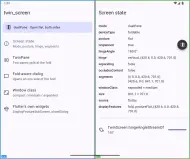
| Live info panel on a real Pixel Fold | Simulating a half-open Galaxy Z Flip |
|---|---|
 |
 |
TwinDebugOverlay adds a small round button over your app. Its draggable
panel shows the mode, device type, posture, hinge angle, window class, size,
platform and data source, and it outlines the segments, the hinge and camera
cutouts on top of your UI.
Turn on the fold simulator and your app is rendered at the exact logical
size of a real device, with a faked MediaQuery and platform report. Switch
the device, the posture (closed, half-open, flat), the hinge angle, the
orientation and whether the app spans both sides or only one. Your app keeps
its state while you switch.
| Preset | Kind | Inner screen | Cover screen |
|---|---|---|---|
| iPhone Duo | book | 951 × 669 pt | 386 × 678 pt app window |
| Galaxy Z Fold | book | 707 × 823 dp | 369 × 905 dp |
| Galaxy Z Flip | flip | 411 × 1006 dp | 360 × 374 dp |
| Pixel Fold | book | 841 × 701 dp | 411 × 797 dp |
| Surface Duo | two panels | 1114 × 720 dp, 34 dp hinge | none |
| Xiaomi Mix Flip | flip | 445 × 1059 dp | 439 × 506 dp |
The overlay is off in release builds. Pass enabled: true to keep it, for
example in an internal QA build.
Read more in the debug overlay guide.
Platform support #
| Platform | Fold bounds | Posture | Hinge angle | Cover screen | Device type |
|---|---|---|---|---|---|
| Android | ✅ Flutter (Jetpack WindowManager) | ✅ hinge sensor + fold state | ✅ TYPE_HINGE_ANGLE |
✅ | ✅ sensor, fold axis and rotation |
| iOS 27.1+ | 🧪 reserved regions | 🧪 UIHinge.status |
🧪 UIHinge.angle |
✅ | ✅ |
| Web | ✅ Viewport Segments API | ✅ Device Posture API | – | – | ✅ from segments |
| macOS, Windows, Linux | – | – | – | – | standard |
✅ verified on emulators or simulators · 🧪 preview
iPhone Duo preview. The cover-screen state and the hardware check are verified in the iOS 27.1 simulator. The open and half-open states (fold bounds, posture and angle) are implemented against the iOS 27.1 runtime but have not yet been confirmed on an unfolded device. Please open an issue with the "Screen state" page of the example app if anything looks wrong.
On iOS the hinge API is reached through the Objective-C runtime, so the plugin builds with any Xcode, including versions whose SDK predates iOS 27.1, and reports an ordinary device where the API is missing.
Platform details, emulator setup and known quirks are in the platforms guide.
Testing your widgets #
You do not need a foldable to test fold-aware code. Give the scope a fake platform report, or take one from a device preset:
testWidgets('the cart sits on the end side of the fold', (tester) async {
  final screen = TwinSimulatedScreen.resolve(
    preset: TwinDevicePreset.galaxyZFold,
    posture: TwinPosture.halfOpened,
    hingeAngle: 110,
    orientation: Orientation.portrait,
    span: TwinSimulatedSpan.both,
  );
  tester.view.physicalSize = screen.size;
  tester.view.devicePixelRatio = 1;
  addTearDown(tester.view.reset);

  await tester.pumpWidget(
    TwinScreenScope(
      platformOverride: screen.platform.copyWith(displayFeatures: screen.displayFeatures),
      child: const MyApp(),
    ),
  );
  await tester.pump(); // TwinPane measures its position after the first frame

  expect(tester.getTopLeft(find.byType(Cart)).dx, greaterThanOrEqualTo(353.5));
});
Read more in the testing guide.
Using with AI coding agents #
Claude Code, Cursor, Copilot, Gemini CLI and Codex can all write
twin_screen code. They do it much better with a few rules, because on their
own they tend to check device model names, hard-code pixel widths and centre
dialogs on the fold. Paste this into your CLAUDE.md, AGENTS.md,
.cursor/rules or .github/copilot-instructions.md:
## Foldables: twin_screen
- `TwinScreenScope` wraps the whole app, above `MaterialApp`. `TwinDebugOverlay` goes inside it.
- Choose layouts by `TwinScreen.modeOf(context)` and `WindowClass.of(context)`,
  never by device model, platform or hard-coded pixel widths.
- Two sides of the fold: `TwinPane(start:, end:)`. Use start/end, not left/right.
  Never place content under the hinge.
- Dialogs: `showFoldAwareDialog` instead of `showDialog`; pass the tap position as `anchorPoint`.
- Prefer narrow readers (`modeOf`, `postureOf`, `hingeOf`) over `TwinScreen.of(context)`.
  `hingeAngle` and `hinge` are nullable.
- Tests: `TwinSimulatedScreen.resolve(preset:, posture:, hingeAngle:, orientation:, span:)`
  + `TwinScreenScope(platformOverride:)`; loop over `TwinDevicePreset.all`.
- Guides: https://github.com/muhammadrasul-dev/twin_screen/tree/main/doc
The AI agents guide has the full rules block, prompts that work well, the mistakes agents make most often, and how to check their work with the fold simulator.
Documentation #
- Getting started
- Screen state
- TwinPane
- Fold-aware dialog
- Window classes
- Debug overlay and simulator
- Platforms
- Testing
- Using with AI coding agents
- FAQ and troubleshooting
- API reference
The example app shows every feature, with the debug overlay turned on.
Contributing #
Bug reports from real devices are especially welcome. See CONTRIBUTING.md.
License #
MIT. See LICENSE.
Metadata

Documentation
Publisher
unverified uploader
Metadata
Fold-aware and dual-screen layouts for Flutter: iPhone Duo, Android foldables and flip phones, and web, plus window size classes and a fold simulator.
Repository (GitHub)
View/report issues
Contributing
Topics
#foldable #dual-screen #adaptive #responsive #layout
License
 MIT (license)
Dependencies
flutter, flutter_web_plugins, web
More
Packages that depend on twin_screen
Packages that implement twin_screen